Troubleshooting display issues in EthoVision
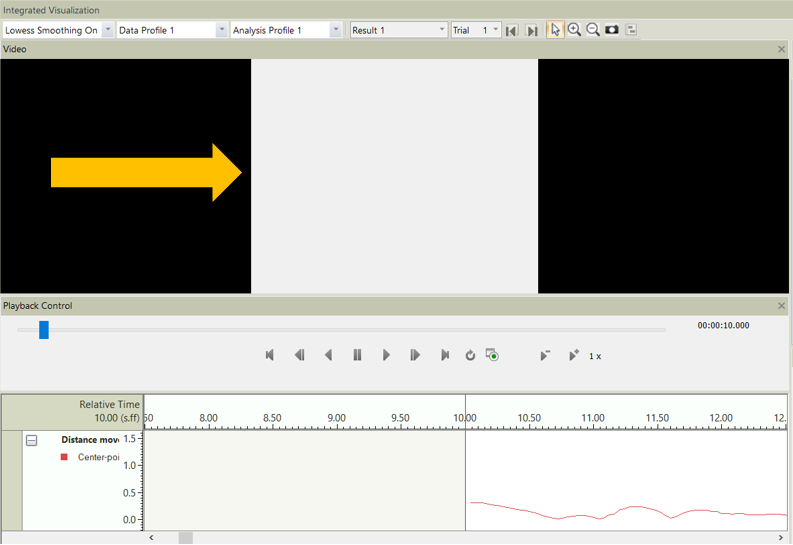
If EthoVision XT displays incorrectly — such as large black areas or missing interface elements — the issue is typically related to GPU settings or outdated video drivers. This can occur in areas such as Arena Settings, Detection Settings, Acquisition, Track Editor, Manual Scoring, and Integrated Visualization.
Solution 1: Change Graphics Settings
Configure Windows to use the correct GPU for EthoVision XT:
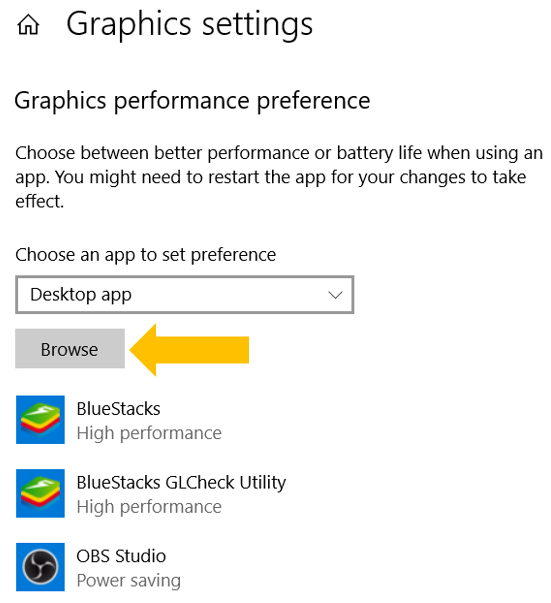
- Go to Start → Graphics Settings.
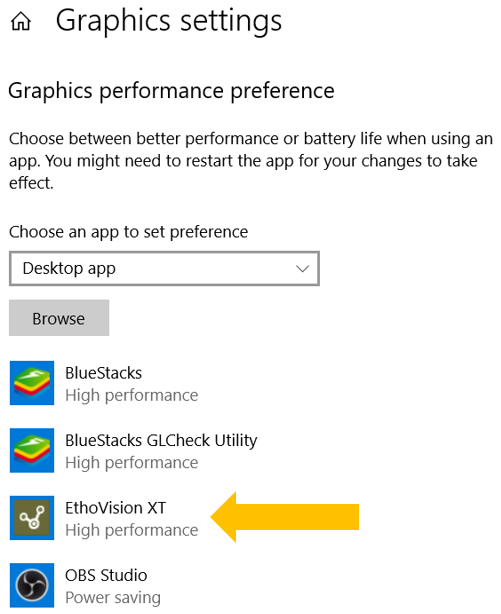
- If EthoVision XT is not listed, click Browse and locate the executable file:
- For XT 16 or newer:
C:\Program Files\Noldus\EthoVision XT XX\EthoVision.exe - For XT 15 or older:
C:\Program Files (x86)\Noldus\EthoVision XT XX\EthoVision.exe
- For XT 16 or newer:
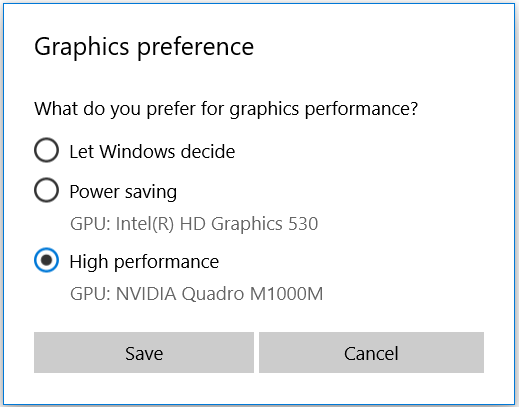
- Select EthoVision from the list, click Options.
- If it is set to High performance, switch to Let Windows decide and save. If it is already set to Let Windows decide, switch to High performance and save.
Note: In some rare cases, using Power saving provides better compatibility. Try this if other options fail.
Solution 2: Check Monitor Connection (Desktop Only)
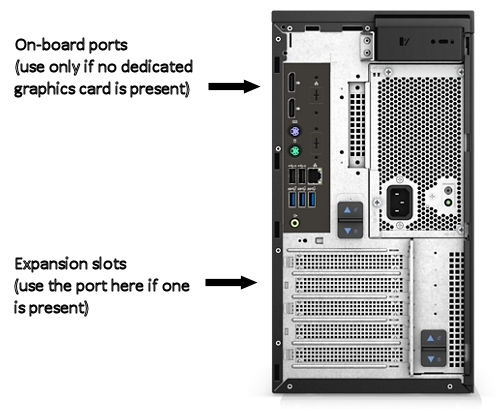
Make sure your monitor is plugged into the correct port. Many desktop computers have both onboard and dedicated graphics outputs.
Correct: Use ports located in the PCIe expansion slot area (lower back of the case) to ensure you’re using the dedicated graphics card.
Solution 3: Update Your Graphics Drivers
To check if you're using a generic display driver:
- Right-click Start and open Device Manager.
- Expand Display adapters.
- If you see Microsoft Basic Display Adapter, it means no proper GPU driver is installed.
To fix:
- Right-click the adapter and choose Update driver, or
- Visit the manufacturer’s website (e.g., NVIDIA, AMD, Intel) and download the latest drivers for your GPU.
Contact Noldus Support if you need help determining the right driver or installing it.